The post NetSuite Saved Searches: The Ultimate Guide appeared first on NetSuite Partner: NetSuite ERP Consultants.
]]>Saved searches are a powerful tool and have a huge role in analytics in the system – even with the introduction of the newer NetSuite SuiteAnalytics tool.
NetSuite Saved Search Creation
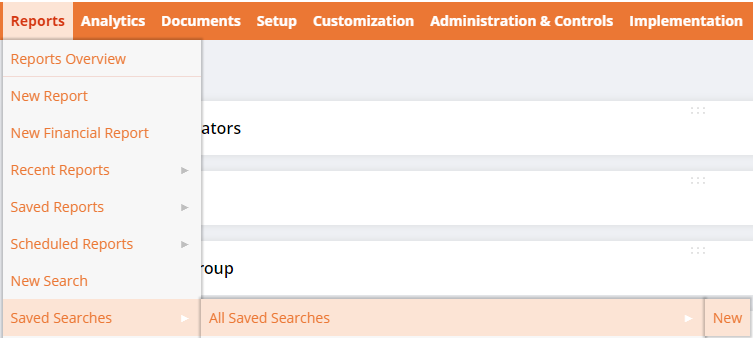
Custom NetSuite saved searches can be created from scratch based on a specific record type in NetSuite. To create a new saved search, select Reports > Saved Searches > All Saved Searches > New. Then choose the record type which your search will be based on. Once you’ve named your search and checked the appropriate checkboxes, you’re ready to enter the options for the search.
- The
Criteriasubtab allows you to select what information must be true about the record for it to be included in the search. - The
Resultssubtab allows you to select which fields in the record you’d like to see data for. There are default fields already selected for you – you can add, remove, and rearrange fields as required. - The
Highlightingsubtab allows you to highlight records that conform to specified criteria. Available Filtersis where you can specify what you’d like to be able to filter on once the search has been run.- The
AudienceandRolessubtabs, if available for your role, allow you to select who has access to the search if you’d like to limit the availability. - The
Emailsubtab, if available for your role, allows you to schedule the report to run at specific times and deliver to end users via email.
The user who runs the search must have access to the data sets it contains in order to see the results. Once you’ve defined your search criteria, you can Preview the NetSuite saved search to verify that it returns the results you are looking for prior to clicking Save. You can also select Save and Run to save the report and have it immediately run.
The Criteria Subtab

There are two sub-tabs within this section: Standard and Summary. The Summary subtab is only available if you have a summary field on the Results subtab.
- In the
Standardsubtab, underFilterselect the field(s) you would like to filter the search on. - A new window will pop up with the option for that filter, which vary based on field type. For example, a true/false field with return the options “both”, “yes”, or “no”. Choose the appropriate filter settings and click
Set. - Repeat these steps for as many filters as you need for the search.
But wait, there’s more! Select the Use Expressions checkbox on this tab to allow the use of formulas.
NOTallows you to specify that you would like records that do not meet the criteria listed.AND/ORallows you to select AND or OR as your search condition for multiple filters with the use ofParensto enclose the conditions in parenthesis.

The Results Subtab
Data returned in the NetSuite saved search can be modified in the Results tab:
Summary Type– Summarize the data based on Group, Count, Sum, Minimum, Maximum, or Average.- When this is used, the
Summarysubtab on theCriteriasubtab becomes available for use.
- When this is used, the
Function– Select a built-in NetSuite function to apply to the results, such as % of Total or Round to the Nearest Hundredth.Formula– When a formula field is selected as the field type, enter the formula to be calculated using NetSuite Tags. This can be as simple as basic arithmetic or as complex as a CASE statement, depending on your needs.Custom/Summary Label– A custom title can be given to any field in the search and is especially helpful for calculated fields.
Don’t forget to choose the Sort By order for your data – at least one field is necessary. The Output of the saved search can be changed to Report, Grid, or Graph, if desired.
The Highlighting Subtab
The Highlight If… and Highlight If… (Summary) tabs allow you to set the criteria for returned data within your NetSuite saved search.
- Click the Expand button on the right side of the
Conditionheader to open a window to specify the criteria for the highlight. This window functions in the same way as theCriteria - Choose an
Image,Text Color,Background Color, orBoldfor the results of the condition.
The Available Filters Subtab
- Select a
Filterthat you would like to appear on the screen when you have run the saved search. - Check the box under
Show in Filter Regionfor it to appear at the top of the report. - If you’d like to be able to select multiple results from this filter, check the
Show as Multi-Select
Overall Saved NetSuite Saved Search Management
To Edit a saved search, you must be an administrator or have permissions to publish search. The owner must also have given Allow Audience to Edit privileges, which will allow you to modify the search and keep the same name or save it with a different name.
To Delete a saved search, you must either be the owner of the search or an administrator. The delete button is only available when the correct permissions are in place.
Closing Thoughts on NetSuite Saved Searches
- NetSuite provides thorough documentation for working with saved searches in it’s official NetSuite Search Guide PDF documentation.
- For even more NetSuite saved search tips check out this video on NetSuite’s official YouTube channel.
? Related Articles
Best Free SuiteApps: A NetSuite Expert’s 5 Favorite
Top Five NetSuite Tips and Tricks (And One You’ve Never Heard Of!)
NetSuite eCommerce (SuiteCommerce): A Complete Overview [Updated for 2021!]
NetSuite Certifications: The Ultimate Guide (Are they worth it?)
The post NetSuite Saved Searches: The Ultimate Guide appeared first on NetSuite Partner: NetSuite ERP Consultants.
]]>The post How Advanced Financials Can Advance Your Business | NetSuite appeared first on NetSuite Partner: NetSuite ERP Consultants.
]]>How Advanced Financials Can Advance Your Business | NetSuite – YouTube
The post How Advanced Financials Can Advance Your Business | NetSuite appeared first on NetSuite Partner: NetSuite ERP Consultants.
]]>The post NetSuite SuiteSuccess Financials First Standard: Budgets appeared first on NetSuite Partner: NetSuite ERP Consultants.
]]>NetSuite SuiteSuccess Financials First Standard: Budgets – YouTube
The post NetSuite SuiteSuccess Financials First Standard: Budgets appeared first on NetSuite Partner: NetSuite ERP Consultants.
]]>The post NetSuite Helps Wirsam Improve Customer Service, Financials and Shipping appeared first on NetSuite Partner: NetSuite ERP Consultants.
]]>NetSuite Helps Wirsam Improve Customer Service, Financials and Shipping – YouTube
The post NetSuite Helps Wirsam Improve Customer Service, Financials and Shipping appeared first on NetSuite Partner: NetSuite ERP Consultants.
]]>The post NetSuite 2018.2 Release Global Financials SneakPeek appeared first on NetSuite Partner: NetSuite ERP Consultants.
]]>NetSuite 2018.2 Release Global Financials SneakPeek – YouTube
The post NetSuite 2018.2 Release Global Financials SneakPeek appeared first on NetSuite Partner: NetSuite ERP Consultants.
]]>The post SuiteWorld General Session: The Future of Global Financials appeared first on NetSuite Partner: NetSuite ERP Consultants.
]]>SuiteWorld General Session: The Future of Global Financials – YouTube
The post SuiteWorld General Session: The Future of Global Financials appeared first on NetSuite Partner: NetSuite ERP Consultants.
]]>The post NetSuite 2018.1 Global Financials SneakPeek appeared first on NetSuite Partner: NetSuite ERP Consultants.
]]>NetSuite 2018.1 Global Financials SneakPeek – YouTube
The post NetSuite 2018.1 Global Financials SneakPeek appeared first on NetSuite Partner: NetSuite ERP Consultants.
]]>The post Next Ready Financials appeared first on NetSuite Partner: NetSuite ERP Consultants.
]]>Next Ready Financials – YouTube
The post Next Ready Financials appeared first on NetSuite Partner: NetSuite ERP Consultants.
]]>The post Financials First – Advanced Financials appeared first on NetSuite Partner: NetSuite ERP Consultants.
]]>Financials First – Advanced Financials – YouTube
The post Financials First – Advanced Financials appeared first on NetSuite Partner: NetSuite ERP Consultants.
]]>The post Financials First – Executive Overview appeared first on NetSuite Partner: NetSuite ERP Consultants.
]]>Financials First – Executive Overview – YouTube
The post Financials First – Executive Overview appeared first on NetSuite Partner: NetSuite ERP Consultants.
]]>